This document explains how to create a new subaccount in WaFloW.ai from the main dashboard.
Subaccounts are required to start working with WhatsApp and GoHighLevel.
Before you begin #
Before creating a subaccount, ensure that:
- You have access to an active WaFloW.ai account.
- You have a GoHighLevel subaccount that you will connect to.
- You know which customer, business, or project the subaccount will represent.
Access the main panel #
- Log in at https://app.waflow.ai/
- Access the main panel of your account.
From here, you will see a list of active subaccounts (if they already exist).
Create a new subaccount #
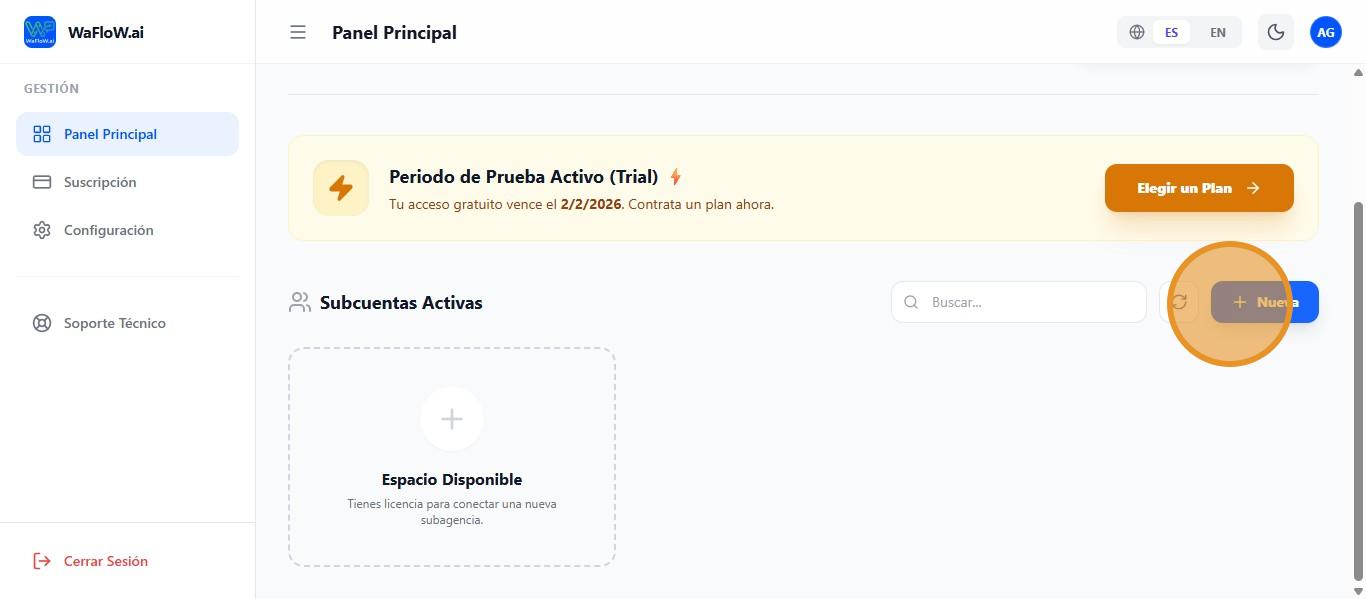
In the subaccounts section:
- Click on the "+ New" button.
- The subaccount creation process will begin.
This step prepares the subaccount for connection to GoHighLevel.
What happens at this point? #
In this phase:
- The subaccount already exists in WaFloW.ai.
- You are not yet connected to GoHighLevel.
- The next step will be to install WaFloW.ai within GHL.
The complete connection is finalized in the following documents.
Best practices when creating subaccounts #
- Use clear and recognizable names (customer or business name).
- Create a subaccount for each client or project.
- Do not reuse old subaccounts for new customers.
- Verify that you have the correct access to the GHL subaccount before continuing.
Common problems #
- ❌ Not having access to the correct GHL subaccount.
- ❌ Closing the window before completing the installation.
- ❌ Create duplicate subaccounts for the same customer.
If something goes wrong, you can repeat the process without affecting other subaccounts.
Summary #
Create a new subaccount in WaFloW.ai:
- It is the first step in working with clients or projects.
- Set up your connection with GoHighLevel.
- It allows for an orderly and scalable structure.